如何在iPhone上部署AutoGLM

记录一下如何让AI接管iPhone手机

前言

智谱开源AutoGLM之后,人人都能打造自己的“豆包手机”了。

2025年,当安卓厂商的AI助手在帮用户写论文、P图、订机票、点2000杯咖啡时,苹果的Siri依然坚守初心,致力于为人类提供禅意体验:“嗯……这个问题……我好像不太明白呢。” 🤔

项目背景

Open-AutoGLM 是基于 AutoGLM-Phone-9B 视觉-语言模型的智能手机自动化框架。感谢Rocke1001feller作者成功将其从 Android (ADB) 适配到 iOS (WebDriverAgent)。

技术架构

 1
 2
 3
 4
 5
 6
 7
 8
 9
10
11
12
13
14
15
16
17
18
19
20
21
22
23
24
25
26
27
28
29
┌─────────────────────────────────────────────────────────┐
│                  AutoGLM-Phone-9B 模型                   │
│              (视觉-语言模型,理解屏幕并决策)                 │
└─────────────────────────────────────────────────────────┘
┌─────────────────────────────────────────────────────────┐
│                   Open-AutoGLM Agent                    │
│        agent_ios.py + handler_ios.py (任务执行器)         │
└─────────────────────────────────────────────────────────┘
┌─────────────────────────────────────────────────────────┐
│                   WDA Python 封装层                      │
│     phone_agent/wda/ (HTTP 客户端 + 坐标转换)             │
└─────────────────────────────────────────────────────────┘
┌─────────────────────────────────────────────────────────┐
│              WebDriverAgent (HTTP Server)               │
│            运行在 iOS 设备上,监听 8100 端口                │
└─────────────────────────────────────────────────────────┘
┌─────────────────────────────────────────────────────────┐
│            iproxy (USB 端口转发工具)                      │
│         将 Mac 的 8100 转发到 iPhone 的 8100              │
└─────────────────────────────────────────────────────────┘
┌─────────────────────────────────────────────────────────┐
│                   iOS 设备 (真机)                        │
│                   执行实际操作                            │
└─────────────────────────────────────────────────────────┘

环境准备

系统要求

  • 操作系统: macOS 10.14+ (建议 macOS 12+)
  • Xcode: 14.0+ (需要从 App Store 安装)
  • iOS 设备: iOS 13.0+ (建议 iOS 14+)
  • Python: 3.10+
  • 网络: 稳定的互联网连接(用于 AI 模型 API)

安装必要工具

安装Homebrew、libimobiledevice

 1
 2
 3
 4
 5
 6
 7
 8
 9
10
11
12
13
# 安装Homebrew
/bin/bash -c "$(curl -fsSL https://raw.githubusercontent.com/Homebrew/install/HEAD/install.sh)"

# 安装libimobiledevice,提供iproxy,主要用于USB端口转发
brew install libimobiledevice

# 验证 iproxy
which iproxy
# 应输出: /usr/local/bin/iproxy 或 /opt/homebrew/bin/iproxy

# 检查连接的 iOS 设备
idevice_id -l
# 应输出设备的 UDID

部署 WebDriverAgent

下载 WebDriverAgent

先下载智谱的Open-AutoGLM,这里直接下载有ios-phone分支的版本,接着下载WebDriverAgent项目。

1
2
3
git clone https://github.com/Rocke1001feller/Open-AutoGLM.git
cd Open-AutoGLM
git clone https://github.com/appium/WebDriverAgent.git

配置 Xcode 项目

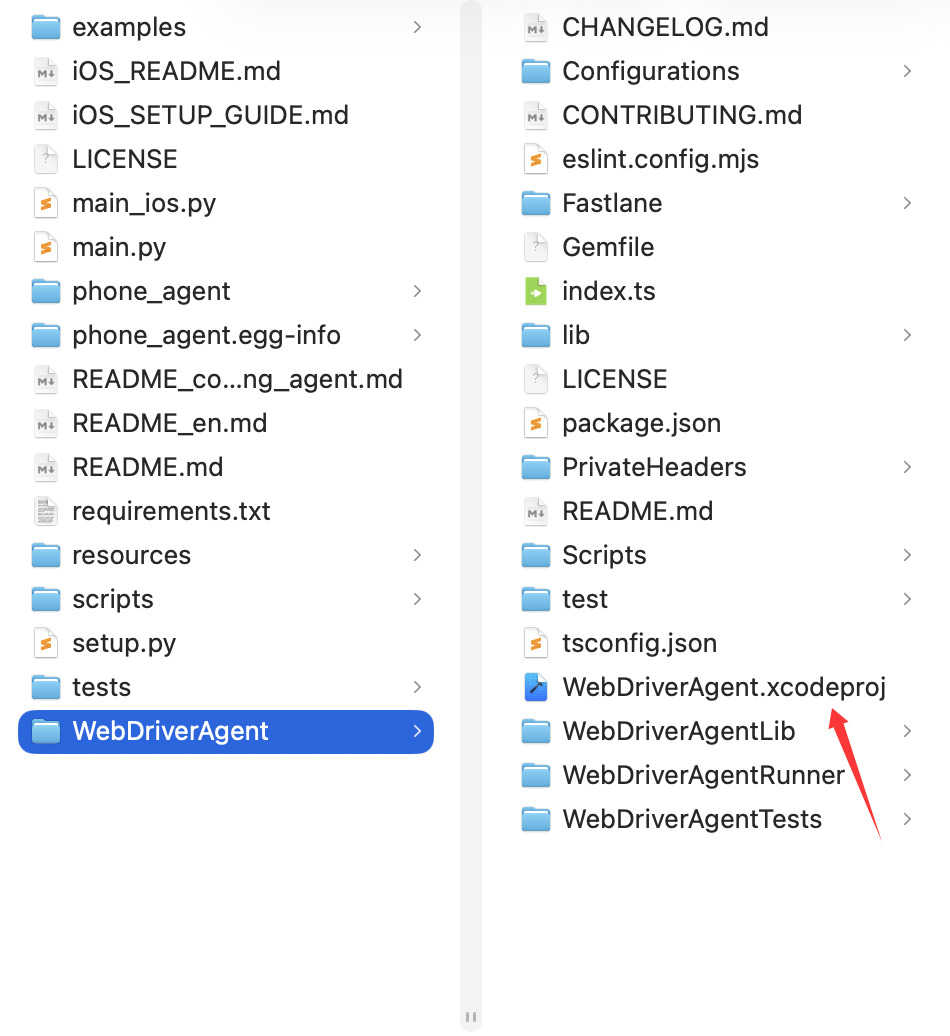
打开项目

安装好Xcode之后,双击打开WebDriverAgent/WebDriverAgent.xcodeproj项目
/images/image-20251222152050.png

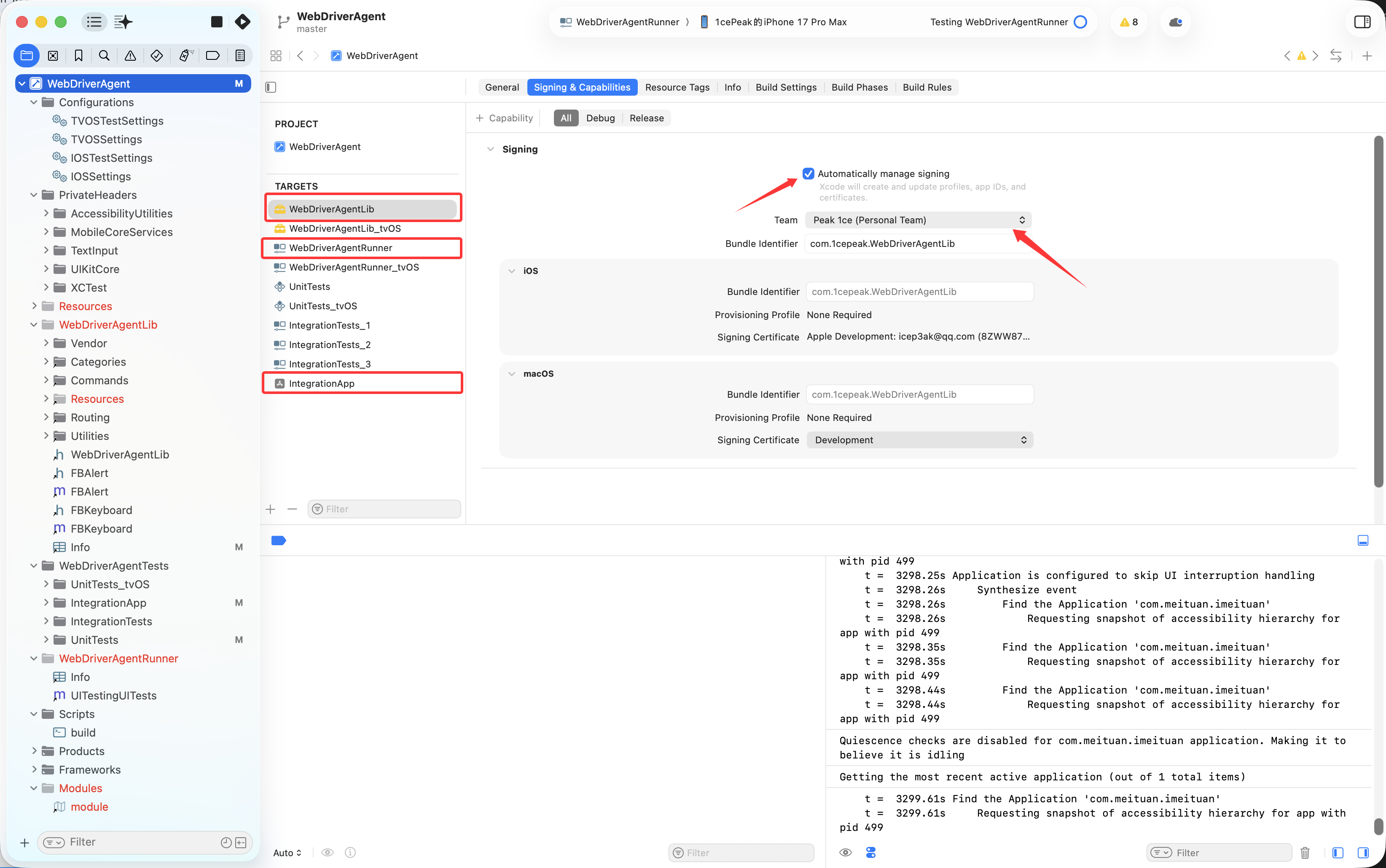
配置签名

  1. 在 Xcode 左侧项目导航器中,选择 WebDriverAgent 项目
  2. 选择 WebDriverAgentLib target
  3. 点击 Signing & Capabilities 标签
  4. 勾选 Automatically manage signing
  5. 选择你的 Team(需要 Apple Developer 账号,不需要付费!)

重要: 重复上述步骤为以下 targets 配置签名:

  • WebDriverAgentLib
  • WebDriverAgentRunner
  • IntegrationApp

/images/image-20251222152342.png

修改 Bundle ID(如果遇到冲突)

如果出现 “Failed to register bundle identifier” 错误:

  1. 选择 WebDriverAgentRunner target
  2. 修改 Bundle Identifier,例如:
1
com.yourname.WebDriverAgentRunner

在这里,yourname可以自定义,输入一个你喜欢的就好。

安装应用到设备

连接 iOS 设备

  1. 使用 USB 线连接 iPhone/iPad 到 Mac
  2. 在设备上信任此电脑
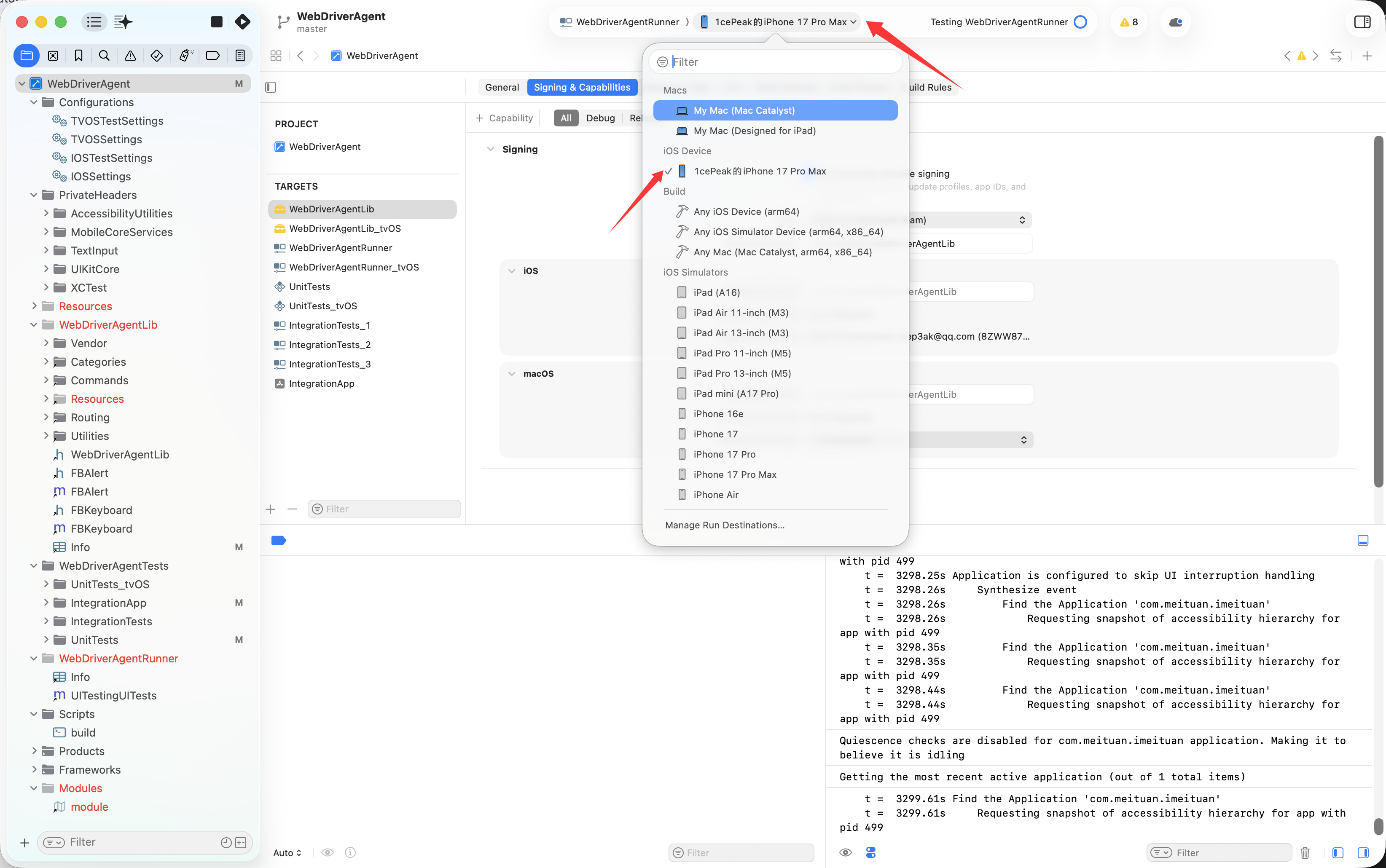
  3. 在 Xcode 顶部工具栏,选择你的真机设备(切记,不然之后会报错!)

/images/image-20251222152850.png

运行 WebDriverAgent

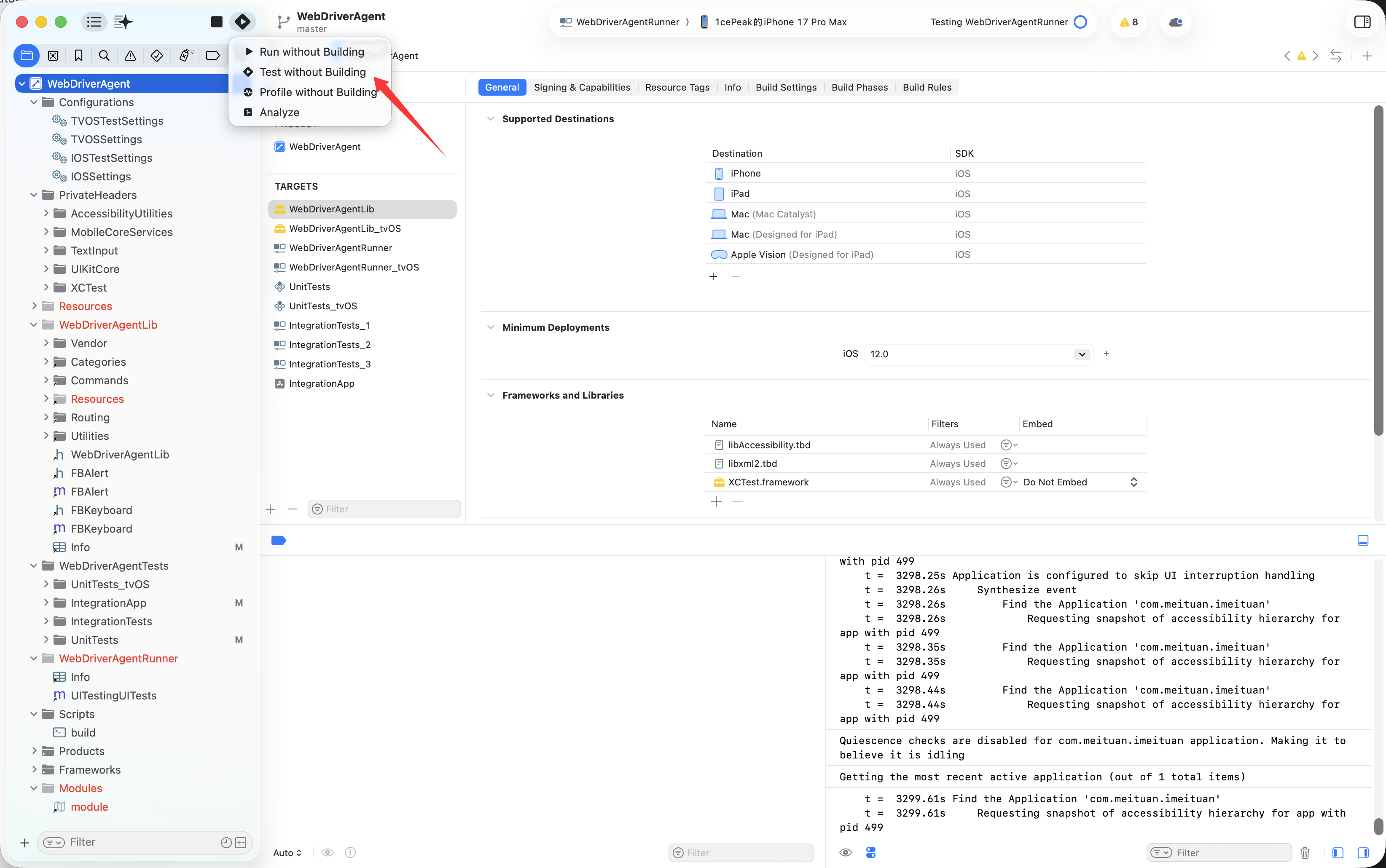
  1. 选择 Product → Scheme → WebDriverAgentRunner
  2. 按 ⌘+U 或点击 Product → Test,或者长按Xcode左上角的运行符号,会出现几个选项,选择Test即可
/images/image-20251222153007.png

信任开发者(首次运行)

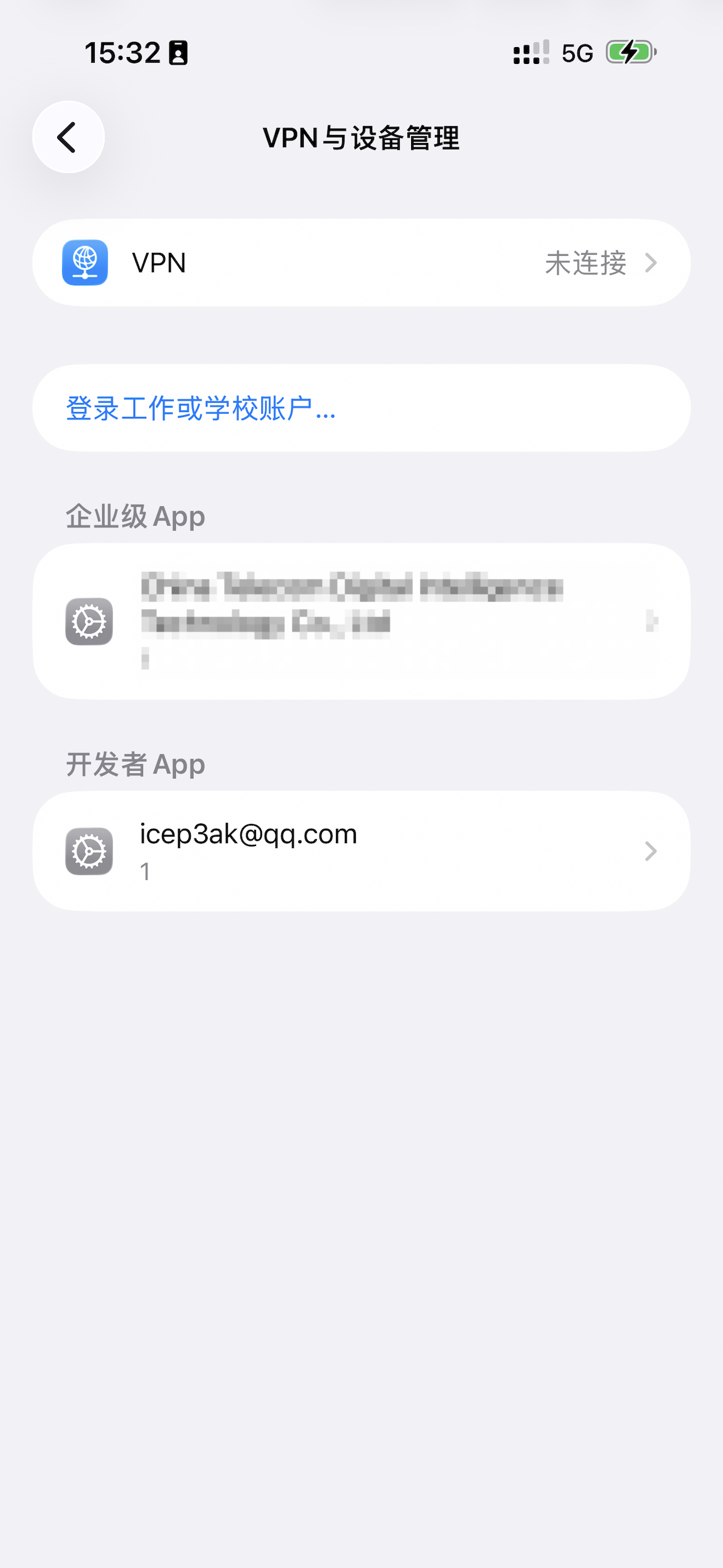
如果设备上出现"不受信任的开发者"警告:

  1. 在 iOS 设备上打开 设置 → 通用 → VPN与设备管理
  2. 找到你的开发者账号
  3. 点击信任

/images/image-20251222153324.png

验证 WDA 启动

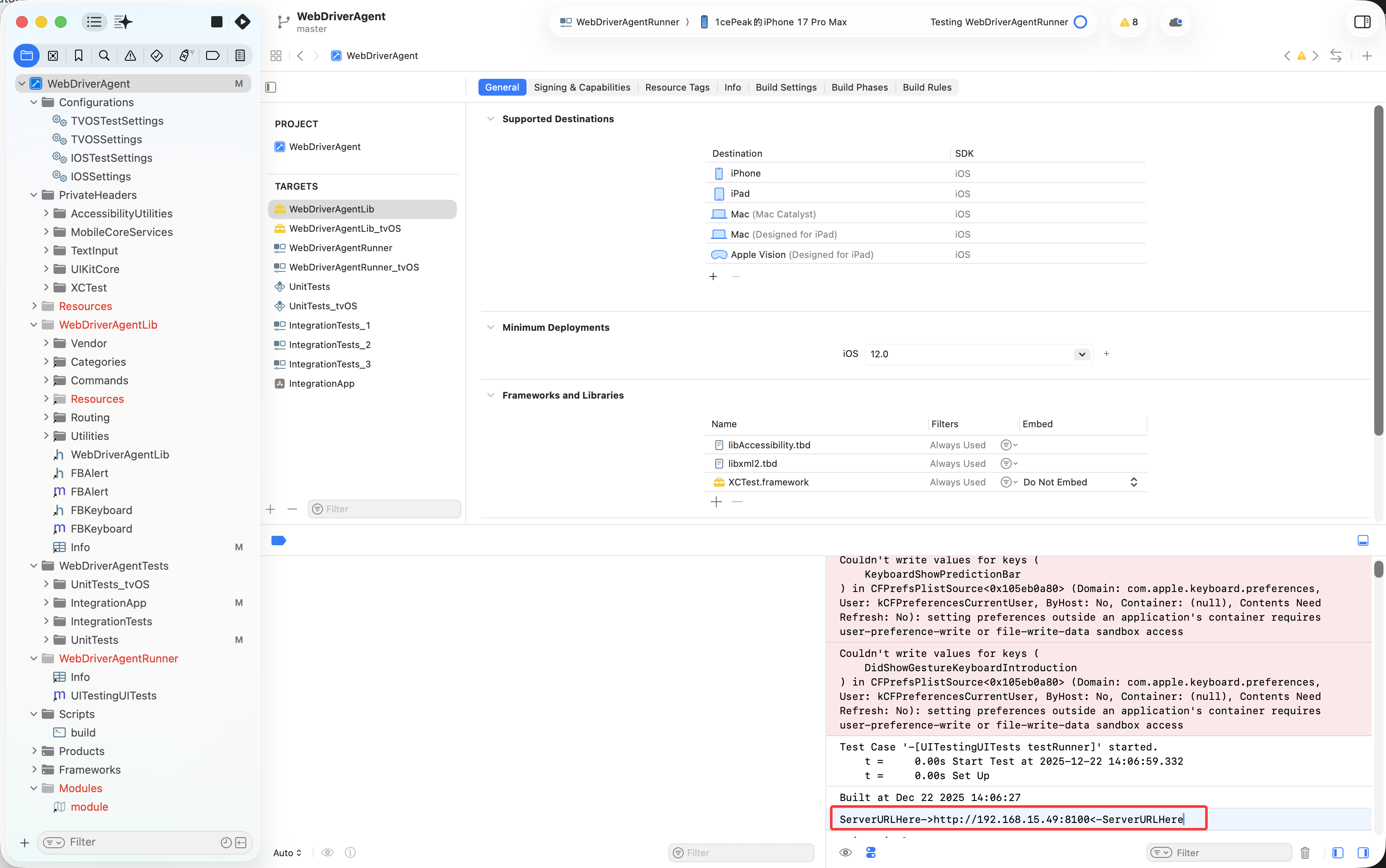
点击View -> Debug Area -> Activate Consoe,然后在 Xcode Console 中查找以下日志:

1
ServerURLHere->http://192.168.x.x:8100<-ServerURLHere

记下这个 IP 地址(等会 USB 转发要用)。

/images/image-20251222153643.png

USB 端口转发

为什么需要 iproxy?

核心问题: iOS 的安全限制使得 WiFi 直连 WDA 不稳定且经常被阻断。 解决方案: 使用 USB 端口转发,将 Mac 的本地端口映射到 iPhone 的端口。

启动 iproxy

在单独的终端窗口运行(需要保持运行):

1
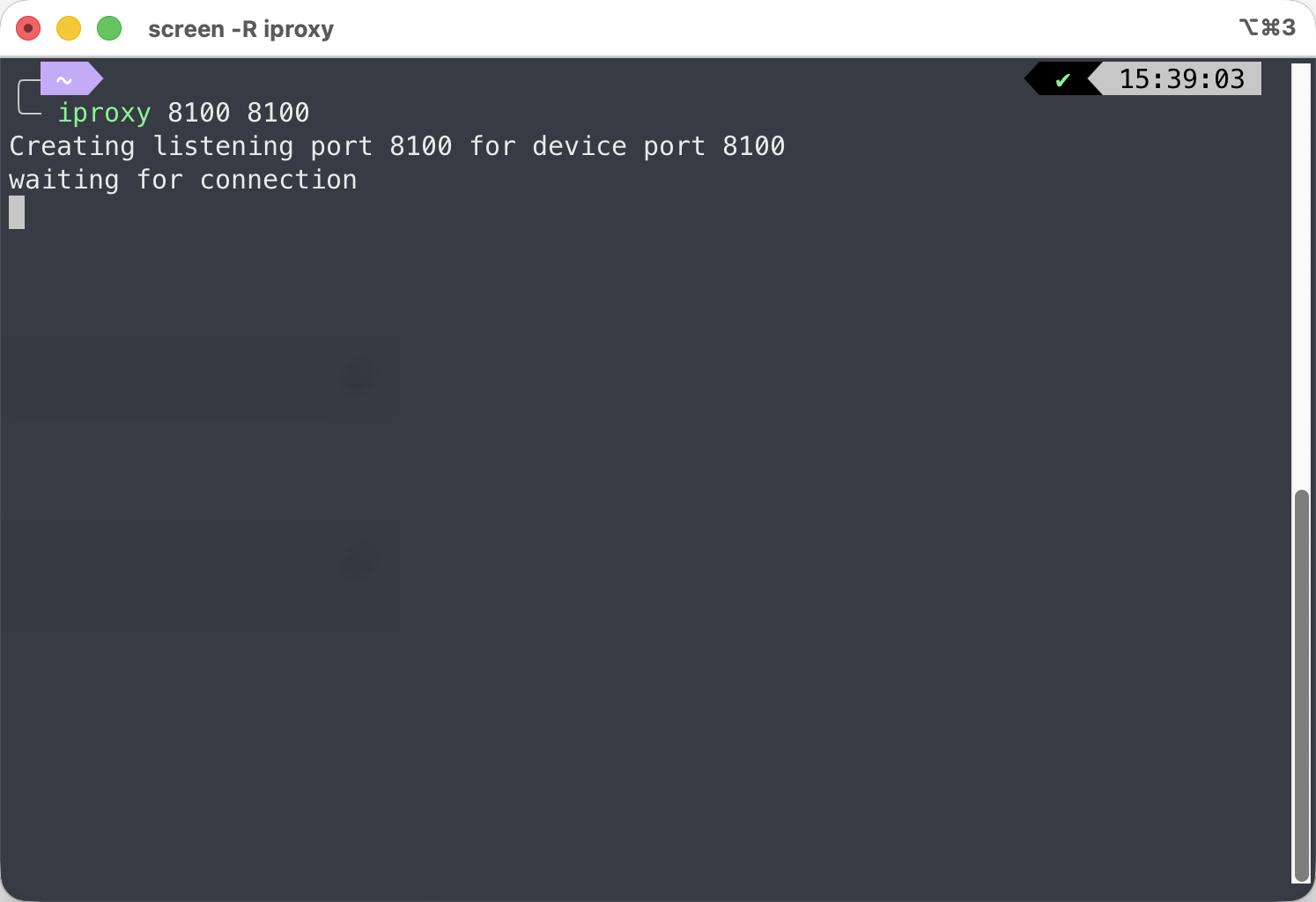
iproxy 8100 8100

输出示例:

1
2
Creating listening port 8100 for device port 8100
waiting for connection

关键点:

  • ✅ 此命令需要持续运行,不要关闭终端
  • ✅ 如果看到 “waiting for connection”,说明正常
  • ✅ 建议在 tmux/screen 中运行,或使用后台进程

/images/image-20251222153916.png

验证连接

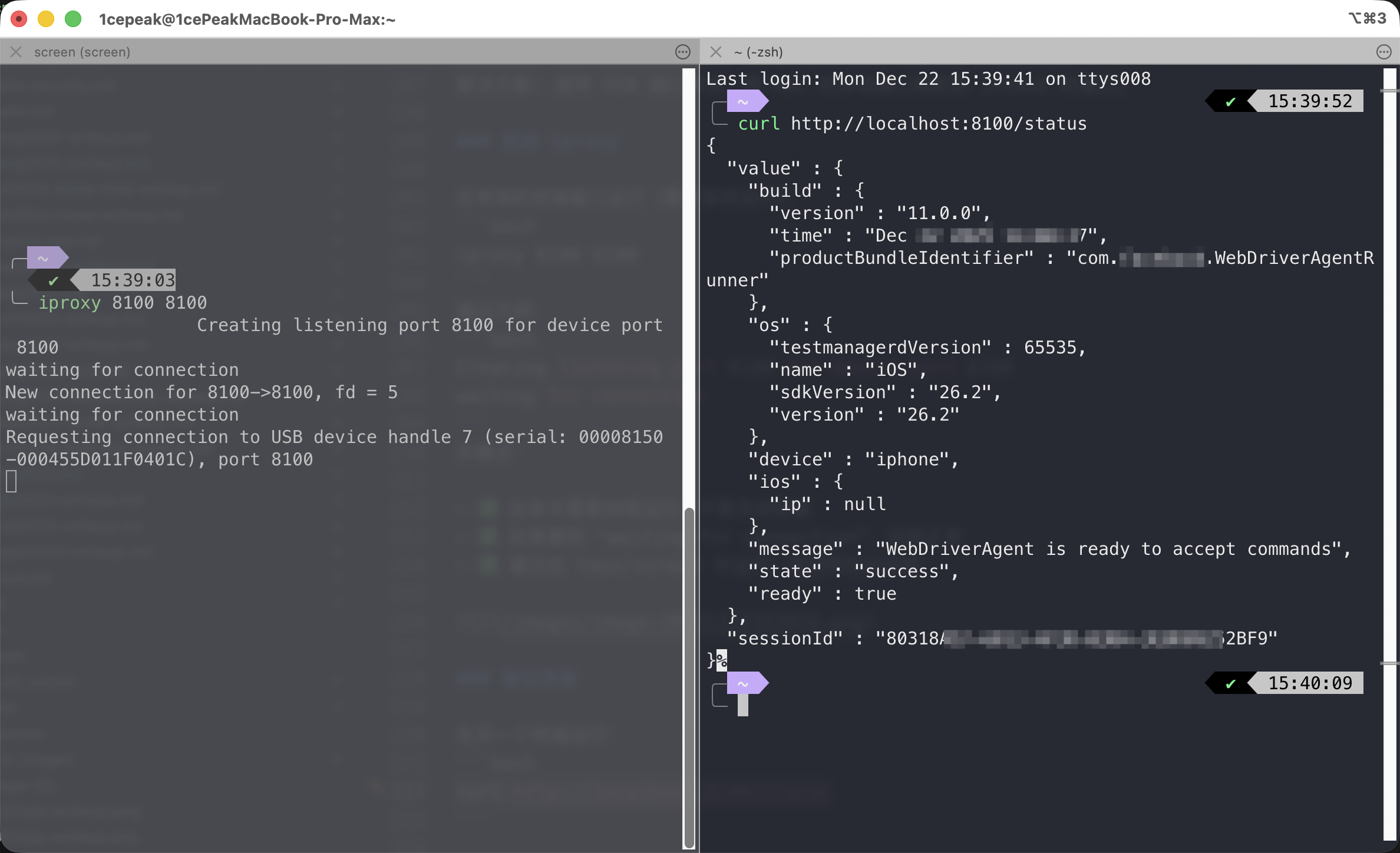
在另一个终端运行:

1
curl http://localhost:8100/status

成功输出(JSON格式):

/images/image-20251222154058.png

失败情况:

1
curl: (7) Failed to connect to localhost port 8100: Connection refused

解决方法:

  1. 确认 iproxy 正在运行
  2. 确认 WDA 在 Xcode 中正在运行(Test 状态)
  3. 检查设备是否通过 USB 连接

安装 Open-AutoGLM

刚才已经下载好Open-AutoGLM项目了,接下来创建虚拟环境。

创建虚拟环境

1
2
3
4
cd Open-AutoGLM
git checkout iOS-iPhone
python3 -m venv .venv
source .venv/bin/activate

安装依赖

1
2
pip install -r requirements.txt
pip install -e .

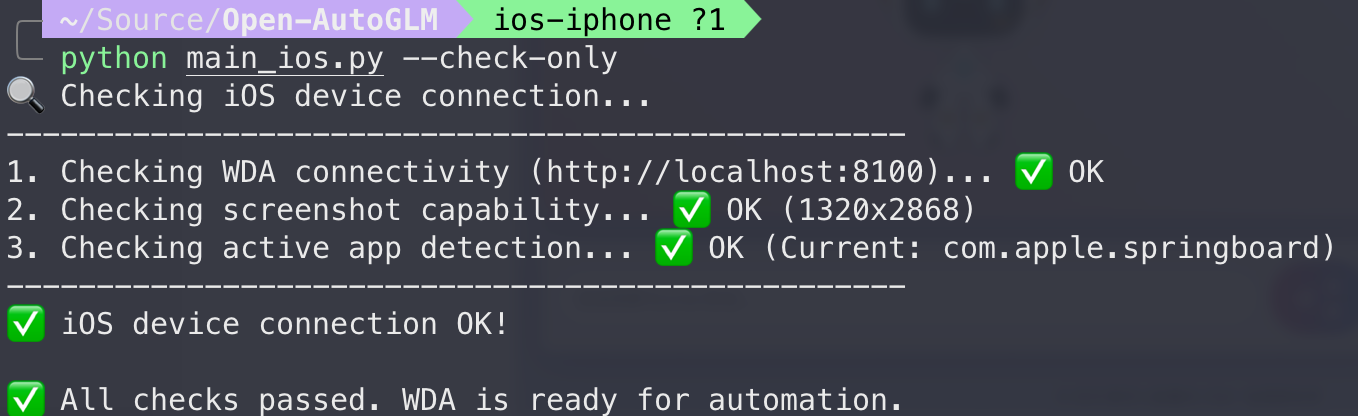
验证安装

1
python main_ios.py --check-only

/images/image-20251222154449.png

AI运行测试

获取 API Key

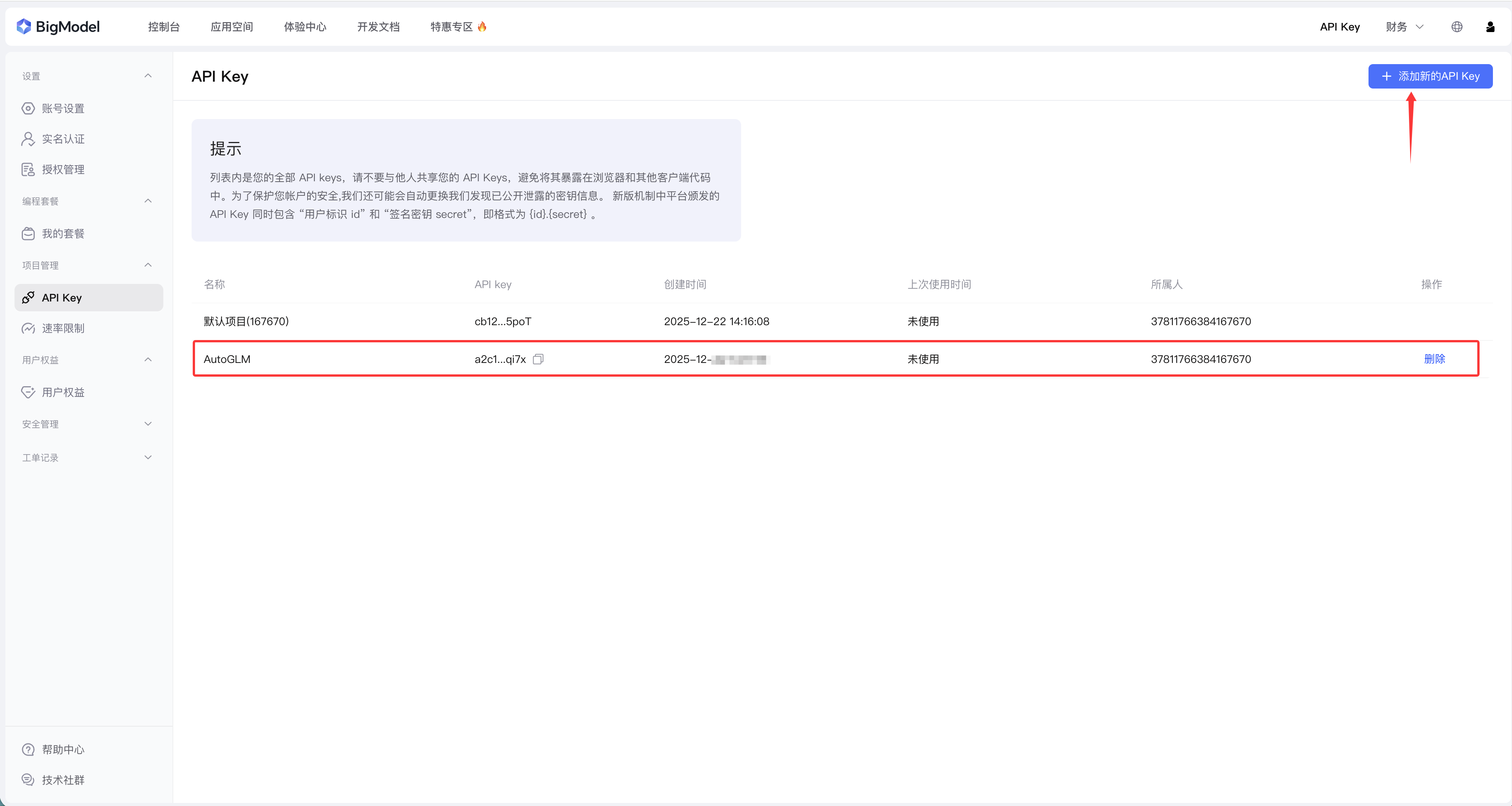
如果使用在线大模型的话,前往智谱官网注册新用户并创建API Key:https://open.bigmodel.cn
/images/image-20251222154710.png

运行基础任务

1
2
3
4
5
python main_ios.py \
    --base-url https://open.bigmodel.cn/api/paas/v4 \
    --model autoglm-phone \
    --apikey "YOUR_API_KEY" \
    "打开美团搜索附近的瑞幸咖啡"

查看支持的 App

1
python main_ios.py --list-apps

交互模式

1
2
3
4
python main_ios.py \
    --base-url https://open.bigmodel.cn/api/paas/v4 \
    --model autoglm-phone \
    --apikey "YOUR_API_KEY"

然后输入任务,例如:

  • “打开微信发送今天北京的天气预报给文件传输助手”
  • “打开淘宝搜索 iPhone 17 Pro Max”
  • “打开滴滴出行,我要去故宫”

弹窗处理

弹窗识别能力

AutoGLM-Phone-9B 是视觉-语言模型,可以识别和处理弹窗:

✅ 可以识别:

  • 广告弹窗
  • 权限请求(定位、通知、相机等)
  • 更新提示
  • 活动推广
  • 引导页

✅ 可以执行:

  • 点击"关闭"、“X"按钮
  • 点击"取消”、“稍后再说”
  • 点击"跳过"、“我知道了”
  • 点击弹窗外区域关闭

目前还是局限于手机连接到电脑的情况,后期要是能够集成到Siri里面就更完美了,再次感谢智谱Rockefeller开源的项目。

0%